How to update DLS 2026 on Android becomes an important question when Dream League Soccer suddenly asks for a newer version just as you’re ready to play your next match. Whether you’re managing your dream squad, improving your stadium, or preparing for online competition, an outdated game can interrupt the experience at the worst possible moment.
Fortunately, updating Dream League Soccer 2026 usually takes only a few minutes through Google Play Store. However, missing update buttons, insufficient storage, download errors, and concerns about losing team progress can complicate the process.
This guide explains the safest update methods, practical troubleshooting solutions, and essential precautions to keep your football career running smoothly. Follow https://gamefluxio.com/ !!!
How to Update DLS 2026 on Android Using Google Play Store
The easiest and safest method for how to update DLS 2026 on Android is through Google Play Store. Official updates are distributed through the game’s authorized listing, reducing the risks associated with modified or unofficial installation files.
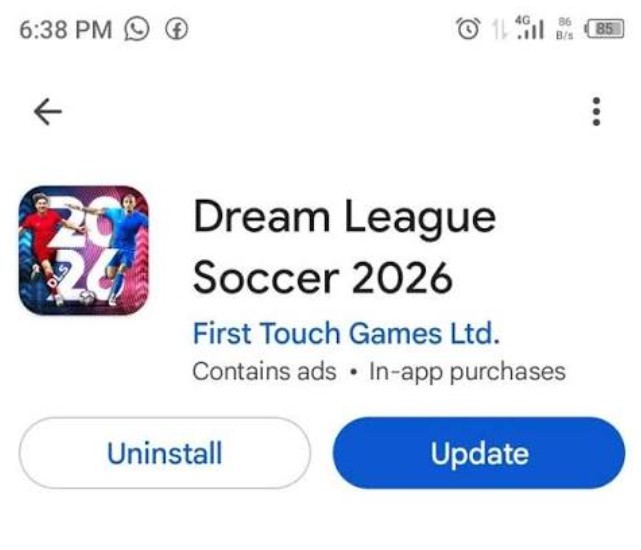
Follow these steps to install an available update:
- Open Google Play Store. Launch the Play Store application on your Android phone.
- Search for Dream League Soccer. Enter the game’s name in the search bar and open the official listing published by First Touch Games.
- Check the update button. If a newer version is available for your device, you’ll normally see an Update option.
- Tap Update. Allow Google Play to download and install the new files.
- Wait for installation. Keep sufficient storage available and avoid interrupting the process.
- Launch the game. Once installation finishes, open DLS 2026 and check whether additional game resources need downloading.
If the listing displays Play instead of Update, Google Play may already consider your installed version current for your device.
You can also visit Play Store, tap your profile picture, select Manage apps & device, and open the available updates section.
The installation time depends on download size, connection speed, device performance, and whether extra resources are required.
For example, a 500 MB download would theoretically take around 80 seconds at a consistent 50 Mbps connection, excluding network overhead and installation time.
I recommend using reliable Wi-Fi for larger updates, particularly before online matches. A stable connection helps reduce interruptions and failed downloads.
What Is New in the Latest Dream League Soccer 2026 Update?
Knowing how to update DLS 2026 on Android is useful, but understanding what the update brings makes the process more exciting. After all, players want more than a new version number—they want improvements that make matches feel better.
According to the official Google Play listing, Dream League Soccer 2026 features over 4,000 FIFPRO-licensed players and eight competitive divisions. The game also includes motion-captured animations, team customization, stadium development, and online competition.
The late-summer update, dated August 28, 2026 on the listing, highlights two developments: the upcoming Cult Heroes special-player collection and fixes addressing dozens of issues.
For me, gameplay improvements matter more than flashy menus. In a football game, responsive passing, reliable player switching, and consistent defensive movement can make the difference between an enjoyable match and a frustrating defeat.
Bug fixes are particularly important for players experiencing crashes or unexpected behavior. However, an update doesn’t guarantee that every performance issue will disappear.
Before updating, read the What’s New section in Google Play. It helps distinguish confirmed features from rumors circulating on social media.
After installation, try a regular match before jumping into competitive online play. Check passing responsiveness, graphics performance, and loading times.
That quick test can reveal whether the new version runs comfortably on your device.
Why Is the DLS 26 Update Not Showing on Google Play?
One frustrating situation occurs when Dream League Soccer requests an update, but Google Play displays only the Play button. If you’re researching how to update DLS 2026 on Android because the update isn’t showing, several explanations are possible.
First, Google Play may already consider your installed version current. Updates can also become available at different times depending on device compatibility, account settings, or distribution schedules.
Try searching for Dream League Soccer 2026 directly rather than relying on an old notification.
If the Update button is still missing, follow these troubleshooting steps:
- Close Google Play Store completely.
- Restart your Android phone.
- Reopen the official game listing.
- Check whether other applications can update.
- Go to Settings, Apps, Google Play Store, Storage, and clear its cache.
- Recheck the game after reconnecting to the internet.
Clearing the Play Store cache is different from deleting Dream League Soccer’s saved data. Avoid removing game data while troubleshooting the store.
Another possibility is that the new version isn’t compatible with your device. Google Play may restrict updates when an application no longer supports particular hardware or software configurations.
If you installed a modified APK rather than the official Play Store version, updating through Google Play may also be problematic.
Avoid forcing an installation from unknown sources. Instead, verify the game’s publisher and compatibility requirements.
If the update remains unavailable, waiting for official distribution or contacting support is safer than experimenting with random APK files.
>>> Read: How to Update iPhone X to iOS 18: What Actually Works in 2026?
How to Fix DLS 2026 Update Stuck or Download Pending
Even after learning how to update DLS 2026 on Android, you may encounter a download that stays at 0%, freezes halfway, or displays Download Pending indefinitely.
The first thing I check when troubleshooting mobile game downloads is the internet connection. An unstable Wi-Fi network can interrupt large files even when ordinary browsing appears normal.
Switch between Wi-Fi and mobile data to determine whether the problem is network-specific. If other applications are downloading simultaneously, pause them temporarily.
Next, examine your available storage. Keeping approximately 3–5 GB free is a useful precaution for large game updates, although this is not an official DLS requirement.
Download speed also influences installation time. For example, a 1 GB download contains approximately 8 gigabits of data.
At a sustained 20 Mbps, the theoretical transfer time is about 400 seconds, or 6 minutes and 40 seconds. Actual downloads may take longer because of connection fluctuations, installation processing, and additional game resources.
If the update remains stuck, restart Google Play Store and your phone. Clearing the store’s cache may also resolve temporary download problems.
Check that your device isn’t operating under unusually restrictive battery or data-saving settings.
Finally, make sure the system date and time are correct. Incorrect settings can sometimes interfere with secure connections and application services.
If multiple apps fail to update, investigate Google Play or your Android system before assuming the problem belongs exclusively to DLS 2026.
How to Update DLS 2026 Without Losing Your Team Progress
For long-time players, how to update DLS 2026 on Android without losing progress is arguably more important than downloading the latest features.
Imagine spending months building your squad, upgrading your stadium, and collecting favorite players, only to discover that your account cannot be recovered after reinstalling the game.
Fortunately, updating an existing application through Google Play normally preserves its installed application data. However, account safety should never be taken for granted.
Before updating, open Dream League Soccer and check its available account-management or synchronization options.
If your game offers account linking, verify that the connection is active and that you can access the associated account.
I also recommend recording useful account details, such as your player identifier, club name, and relevant support information. Screenshots can help when contacting customer support, although they don’t replace an official recovery method.
Avoid using Clear Data in Android settings. Unlike Clear Cache, this action can remove locally stored application information.
Uninstalling the game also introduces additional risk, particularly when progress hasn’t been properly synchronized.
After updating, open the game and confirm that your club, players, currency, and progression appear correctly.
If something looks wrong, avoid immediately creating a new account or making additional changes. Contact First Touch Games support and explain what happened.
Protecting your progress takes only a little preparation, but it can save considerable frustration.
Should You Update DLS 2026 Using an APK File?
Players searching for how to update DLS 2026 on Android often encounter websites advertising the latest DLS 26 APK, OBB packages, or modified versions with unlimited coins and gems.
Although Android supports installing applications outside Google Play, that flexibility introduces additional security considerations.
The official Google Play version is generally the safest option because it provides a recognized distribution channel, publisher identification, and an established update mechanism.
Third-party APK files may be outdated, modified, incorrectly packaged, or distributed by unauthorized sources.
Some websites promise unlimited resources or unlocked premium features. These claims should be treated cautiously, especially when the download requests unusual permissions.
Modified installations may also interfere with official updates, create compatibility problems, or put your game account at risk.
If you’re using an Android device without access to Google Play, investigate whether First Touch Games offers another authorized distribution method. Don’t assume that a website displaying the game’s logo is officially affiliated with the developer.
For most players, I recommend avoiding unofficial APK updates entirely.
Another important consideration is installation signatures. Android generally requires compatible signing information when updating an existing application. A differently signed package may fail to install over the original version.
Uninstalling the original game to bypass that problem can put unsynchronized progress at risk.
Ultimately, convenience isn’t worth compromising your phone’s security or losing a football team you’ve spent months developing.
How to Enable Automatic DLS 2026 Updates on Android
Once you understand how to update DLS 2026 on Android, enabling automatic updates can reduce the need to check Google Play manually.
Google Play allows users to update applications individually or configure automatic updates according to their network preferences.
To enable automatic updates specifically for Dream League Soccer, open Google Play Store and find the game’s official listing.
Tap the three-dot menu in the upper-right corner, if available, and enable automatic updates for that application.
You can also manage broader update preferences through your Play Store profile, Settings, Network preferences, and Auto-update apps.
Depending on your device and Play Store version, you may be able to select Wi-Fi-only updates or allow mobile data.
For players with limited data plans, Wi-Fi-only updates are usually the more predictable choice.
Automatic updates are convenient, but they aren’t guaranteed to install immediately. Google Play considers several conditions, including connectivity and application availability.
I prefer checking the update notes occasionally, particularly before major gaming sessions.
A new version might introduce gameplay changes that affect familiar controls, team strategies, or performance settings.
After an automatic update, open DLS 2026 and verify that your club loads normally.
You should also confirm that the game doesn’t require additional resource downloads before entering an online match.
Automatic updating is a useful convenience feature, but a quick manual check remains worthwhile before competitive gameplay.
Conclusion: Keep Dream League Soccer 2026 Updated Safely
Learning how to update DLS 2026 on Android doesn’t have to be complicated. For most players, the process involves opening Google Play Store, finding Dream League Soccer 2026, and installing the latest available version.
If the update doesn’t appear or becomes stuck, check your internet connection, storage space, Play Store cache, and device compatibility before attempting more complicated solutions.
Most importantly, protect your club progress by verifying account synchronization and avoiding unnecessary uninstallation.
The official Google Play listing remains the best starting point for checking available updates, confirmed features, and publisher information.
Whether you’re developing your squad, competing through eight divisions, or challenging other players online, keeping your game updated can help you access new content and important fixes.
The best approach is simple: update through trusted sources, protect your progress, and test the game before your next competitive match.
>>> Read: Why Is DLS 26 Not Working on My Phone? 9 Easy Fixes

Pingback: Best Omniraptor Mutations The Isle Evrima – 2026 Guide - Fluxio – Explore the Future of Technology