
Wondering how to find passwords on iPhone iOS 18 after Apple’s latest password management changes? You’re not alone. With iOS 18, Apple introduced a dedicated Passwords app, making it easier to access saved website logins, app credentials, Wi-Fi passwords, and passkeys. Whether you forgot your gaming account login or need to reconnect another device to Wi-Fi, this guide explains exactly where to look. Follow Gamefluxio !!!
How to Find Saved Passwords on iPhone iOS 18
The biggest change in iOS 18 is that saved passwords now have their own dedicated application. Previously, iPhone users generally accessed their stored credentials through Settings. With iOS 18, Apple moved password management into a more convenient interface.
Stores website logins, app passwords, passkeys, verification codes, and Wi-Fi credentials.
To view your saved passwords, follow these steps:
- Unlock your iPhone and open the Passwords app.
- Authenticate using Face ID, Touch ID, or your device passcode.
- Tap All to browse your saved accounts.
- Use the search bar to find a website or application.
- Select the account you want to inspect.
- Tap the password field to reveal or copy the saved password.
For example, searching for a gaming platform, email provider, or shopping website can help you locate its saved login without resetting your account.
If you have dozens or hundreds of stored credentials, searching by website name is usually faster than scrolling through the complete list.
Understanding how to find passwords on iPhone iOS 18 is especially useful when moving to a new device or signing in to an application after a long break.
The Passwords app is protected by device authentication, helping prevent casual access to sensitive credentials.
Where Did Saved Passwords Go After Updating to iOS 18?
If you recently updated your iPhone, you might notice that the familiar password list is no longer located where it used to be. This change can initially feel confusing, especially if you previously relied on the Settings app.
In iOS 17 and earlier, saved credentials were generally accessible through Settings > Passwords. Apple redesigned this experience in iOS 18 by introducing the standalone Passwords app.
Your previously saved credentials should normally remain available after updating, provided they were stored in Apple’s password management system and the update completed successfully.
If you cannot locate the app, try these methods:
- Swipe down on the Home Screen to open Spotlight Search.
- Type Passwords into the search field.
- Tap the Passwords app when it appears.
- Authenticate and select All to browse your accounts.
You can also check the App Library. If the app was deleted, it may be possible to reinstall it from the App Store.
Another useful feature is password categorization. The app organizes information into sections such as All, Passkeys, Codes, Wi-Fi, Security, and Deleted.
This makes managing different types of credentials considerably easier.
For users learning how to find passwords on iPhone iOS 18, the most important point is that Apple has changed the location of password management, not necessarily deleted existing credentials.
If a particular login remains missing, check whether it was originally stored in another password manager, such as Google Password Manager or a third-party application.
>>> Read More: How Much Is iPhone 18 Pro Max in USA?
How to Find Wi-Fi Passwords on iPhone iOS 18
Forgetting a Wi-Fi password is surprisingly common, especially when your iPhone connects automatically to a network you joined months ago.
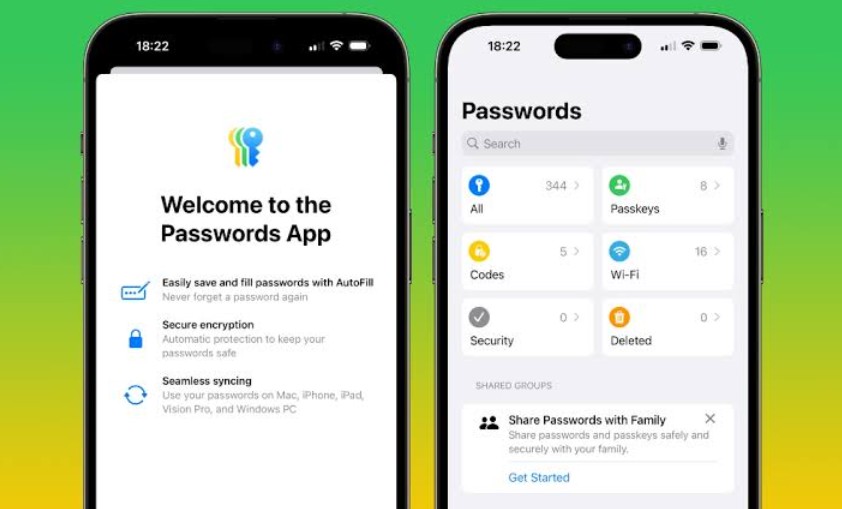
Fortunately, iOS 18 provides convenient ways to inspect saved Wi-Fi credentials without resetting your router.
The first method uses Apple’s Passwords app:
- Open the Passwords app.
- Unlock it using Face ID, Touch ID, or your passcode.
- Select the Wi-Fi category.
- Choose the network whose credentials you need.
- Tap the password field to reveal or copy it.
You can also access the password for your currently connected network through Settings.
Navigate to Settings > Wi-Fi, tap the information icon beside the connected network, and select the password field. Authenticate when prompted.
These options are useful when connecting another smartphone, laptop, tablet, or gaming device to the same wireless network.
For example, if you recently purchased a handheld gaming console, copying the existing Wi-Fi password can save time during setup.
One important distinction is that your iPhone must already have the network credentials saved. It cannot reveal the password for an unfamiliar network you have never joined.
When exploring how to find passwords on iPhone iOS 18, remember that Wi-Fi credentials are separate from ordinary website logins, even though both can appear inside Apple’s Passwords app.
Avoid sharing network passwords publicly, particularly for private home or workplace connections.
How to Find App Passwords, Gaming Accounts, and Passkeys
Saved passwords are particularly useful for people who regularly switch between applications, websites, and online gaming platforms.
If you play mobile games, you may have separate credentials for your Apple Account, gaming publisher accounts, social sign-in services, and community platforms.
To locate a saved app password, open the Passwords app and search for the associated service.
For example, a login might appear under the game’s publisher website rather than the game’s exact title.
This is an important detail because Apple’s password manager often associates credentials with website domains and supported applications.
Once you find the correct account, select it to inspect the saved username and password.
However, not every application uses a traditional password. Some services support passkeys, which allow authentication through cryptographic credentials protected by your device.
In iOS 18, you can review stored passkeys through the Passkeys category.
Unlike ordinary passwords, passkeys are not typically displayed as readable secret strings that you can copy into another application.
Instead, they authenticate you through a supported sign-in process.
Another distinction involves Sign in with Apple. An application using Apple’s authentication system may not have a separate password stored for that specific service.
For anyone researching how to find passwords on iPhone iOS 18, understanding these differences can prevent unnecessary account recovery attempts.
If no credential appears, check the application’s original sign-in method before resetting anything.
How to Recover Deleted or Missing Passwords on iPhone
Accidentally deleting a saved password can be frustrating, especially when you no longer remember the original login details.
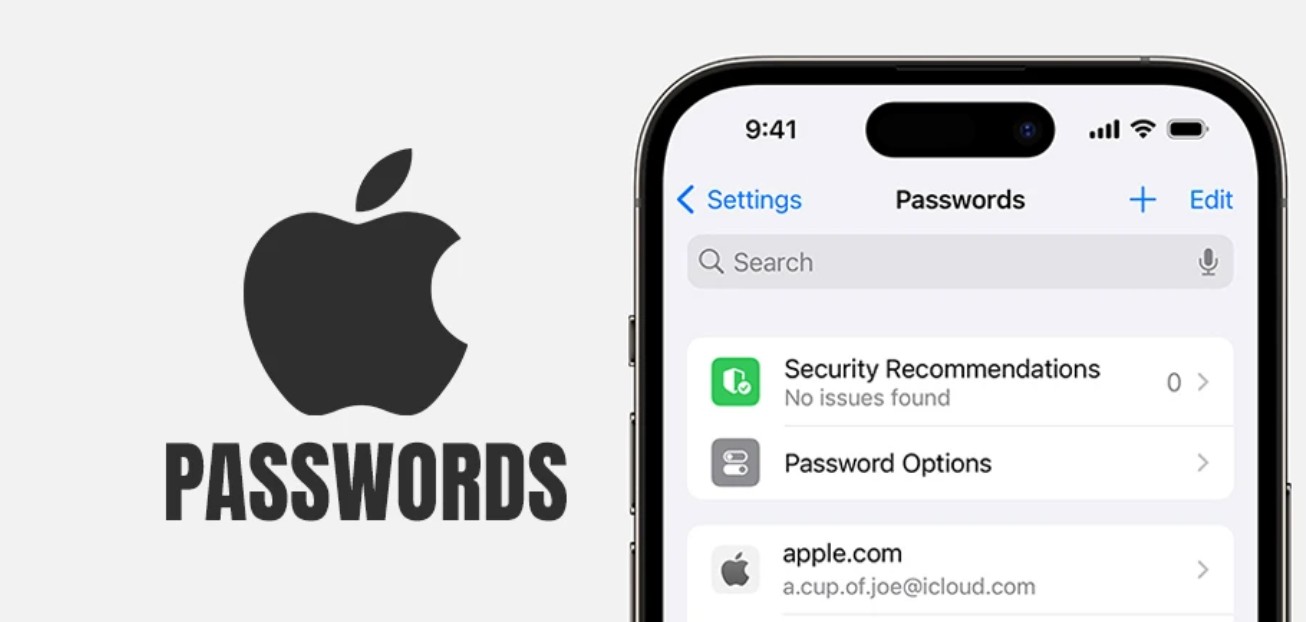
Fortunately, Apple’s Passwords app includes a Deleted section that can help recover recently removed credentials.
To check for deleted passwords:
- Open the Passwords app.
- Authenticate using your device’s security method.
- Select Deleted.
- Find the account you want to recover.
- Choose the recovery option if the credential is still available.
Deleted passwords and passkeys can generally remain recoverable for up to 30 days before permanent removal.
This recovery window is particularly helpful when cleaning up old accounts or accidentally removing an important login.
If the missing credential is not in Deleted, investigate whether password synchronization is enabled.
Open Settings, select your Apple Account, navigate to iCloud > Passwords & Keychain, and check the available synchronization settings.
The exact wording may vary slightly between iOS versions.
If you use multiple Apple devices, ensure they are signed into the intended Apple Account and that iCloud password synchronization is configured appropriately.
Another possibility is that the credential was saved through a different browser or password manager.
Learning how to find passwords on iPhone iOS 18 involves identifying where the password was originally stored, not simply searching one location repeatedly.
If recovery is unsuccessful, use the affected service’s official password reset process.
Never provide your Apple Account password or device passcode to an unfamiliar website claiming it can recover deleted credentials.
How to Keep Your iPhone Passwords Secure in iOS 18
Finding your saved credentials is only one part of effective password management. Keeping those credentials secure is equally important.
Apple’s Passwords app includes security-related features designed to help users identify potentially vulnerable accounts.
The Security section can flag certain password concerns, including credentials that may have appeared in known data breaches, reused passwords, or passwords considered weak.
These alerts provide a useful opportunity to review account security.
If you discover that several accounts share the same password, prioritize changing them to unique alternatives.
A strong password should be difficult to guess and should not rely on predictable personal information.
For most accounts, a password manager can generate and store complex passwords automatically.
Apple’s system also supports verification codes for compatible services, allowing you to manage certain two-factor authentication credentials alongside passwords.
However, two-factor authentication remains important even when passwords are stored securely.
Another valuable feature is iCloud Keychain synchronization, which can make credentials available across supported Apple devices using the same account.
When sharing passwords with trusted family members, use supported password-sharing features instead of sending sensitive credentials through unsecured messages.
For users interested in how to find passwords on iPhone iOS 18, these tools turn the Passwords app into more than a simple storage location.
The goal is not merely to remember fewer passwords. It is to maintain stronger account security while making legitimate sign-ins more convenient.
Why Is the Passwords App Not Showing Saved Passwords?
Sometimes the Passwords app opens correctly but does not display the login you expected.
This situation does not necessarily indicate that your iPhone has lost its saved credentials.
One common explanation is that the account was never saved to Apple’s password manager.
For example, Chrome users may have credentials stored in Google Password Manager instead of iCloud Keychain.
Similarly, third-party password managers maintain their own credential databases.
Another possibility is that iCloud synchronization is disabled or the device is signed into a different Apple Account.
If your passwords appear on another Apple device but not your iPhone, review the synchronization settings on both devices.
You should also check whether the credential appears under a different website name.
A gaming service, for instance, might store its login under the publisher’s authentication domain.
If the app itself is missing, search for Passwords using Spotlight or the App Library.
Restarting your iPhone can sometimes resolve temporary interface problems, although it will not restore credentials that were never stored.
Before changing settings, ensure you have access to your Apple Account recovery methods.
When troubleshooting how to find passwords on iPhone iOS 18, work systematically: identify the original storage location, verify synchronization, inspect Deleted, and only then consider resetting the affected account.
This approach reduces the risk of unnecessary password changes or accidental data loss.
Frequently Asked Questions About iPhone Passwords in iOS 18
Where are saved passwords stored on iOS 18?
Saved Apple-managed credentials are accessible through the dedicated Passwords app. Open the app, authenticate, and select All to view your stored accounts.
Can I see saved passwords without Face ID?
Yes. Depending on your device and configuration, you may authenticate using Touch ID or your device passcode. You cannot legitimately bypass the required device authentication.
How do I find my Gmail password on iPhone iOS 18?
Open Passwords and search for Google or Gmail. If the credential was saved in Apple’s system, you can view it after authentication. Otherwise, check Google Password Manager or use Google’s official account recovery process.
Can I recover passwords deleted more than 30 days ago?
Generally, passwords permanently removed from Apple’s Deleted section cannot be restored through that feature. You may need to reset the password through the associated service.
Does iOS 18 save passwords automatically?
iOS 18 can offer to save or update credentials when supported apps and websites use Apple’s password management and AutoFill features. Automatic saving depends on your settings and the sign-in method.
Final Thoughts
Understanding how to find passwords on iPhone iOS 18 is easier once you know that Apple has introduced a dedicated Passwords app.
Instead of searching through multiple Settings menus, you can access saved website credentials, supported app logins, Wi-Fi passwords, passkeys, and verification codes from one location.
For everyday users, this change makes password management more convenient. For mobile gamers and people managing numerous online accounts, it can also simplify switching devices and recovering forgotten logins.
The most important habits are straightforward: keep your passwords synchronized securely, use unique credentials, enable additional account protection where available, and review security warnings regularly.
With these practices, your iPhone can serve as a practical and secure password manager without requiring you to memorize every login.
